
For most creators, YouTube earnings live in one place — YouTube Studio — and nowhere else. That's fine until you realise your channel income is sitting on its own island, with no easy way to see it next to the AdSense or AdMob money you also earn. The question "how much did I make today, in total?" has no single answer.
This guide shows you how to track your YouTube revenue from your phone, what the metrics mean for a channel, and why your estimated earnings shift before they finalise.
Why checking YouTube earnings on the go falls short
YouTube Studio shows your channel's numbers, but it's built around content analytics, not your whole business. Your revenue figure lives apart from every other income stream, so seeing your real total means jumping between apps and doing the maths in your head. And like every ad platform, the earnings you see mid-month are estimates that aren't always front-and-centre.
If YouTube is one of several ways you earn — a channel plus a blog, or a channel plus an app — that fragmentation is the real friction. You don't want three dashboards; you want one number, updated, in your pocket.
How to track your YouTube revenue with Aperio
Aperio connects to your channel and puts its earnings on the same dashboard as everything else you run.
- Download Aperio and open it on your phone.
- Connect YouTube with a secure Google sign-in — read-only, through Google's official API, with no password shared.
- Pick your lead metric — revenue, views, or RPM — and your charts and comparisons re-orient around it.
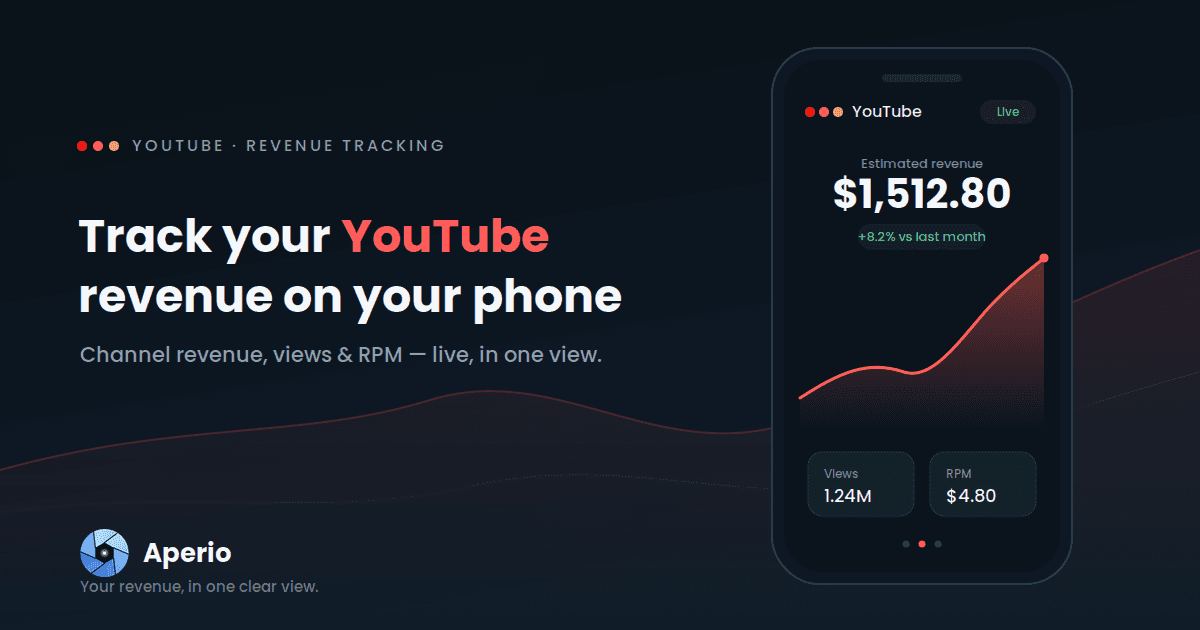
- Read your dashboard. Your YouTube card shows estimated revenue with a trend line and a period-over-period comparison, sitting right beside your AdSense and AdMob cards.
One dashboard for everything you earn. Download Aperio and connect your channel in under a minute.
The YouTube numbers Aperio shows you
| Metric | What it tells you for your channel | Unit |
|---|---|---|
| Estimated revenue | Your estimated YouTube earnings for the selected period | $ |
| Views | How many times your content was viewed | # |
| Impressions | How many ads were served against your videos | # |
| RPM | Revenue per 1,000 impressions — the value of a thousand ad views | $ |
Creators tend to live and die by RPM, and for good reason: it's the cleanest read on how well your audience actually monetises. With your estimated revenue and your views both on the same screen, you can see at a glance whether a spike in viewership is translating into earnings — or whether a video that's racking up views is barely paying. A channel that grows views while RPM slides is a very different story from one where both climb together, and that's the kind of thing you want to notice early, not at the end of the month.
Why your YouTube estimate moves
The earnings you see during the month are estimates. YouTube revises them as figures are reconciled and finalised, so the in-period number can shift before it settles. Aperio mirrors those estimates so they track closely to Studio — but your YouTube account stays the official record of what you'll be paid.
A live estimate you can check in seconds is the point: it's there to help you spot a trend while you can still act on it, not to replace the finalised statement.
Get more out of your YouTube data
- Compare periods to see whether this month is genuinely ahead of the last.
- See it next to everything else — your channel revenue beside AdSense and AdMob, rolled into one combined total.
- Set a monthly goal across all your income and watch it fill.
- Choose your currency so your earnings read the way you think.
- Let it refresh in the background, so the app is current whenever you open it.